Copying with rsync
First published February 17, 2020 • Last modified on July 18, 2026 • 3 min read • 489 words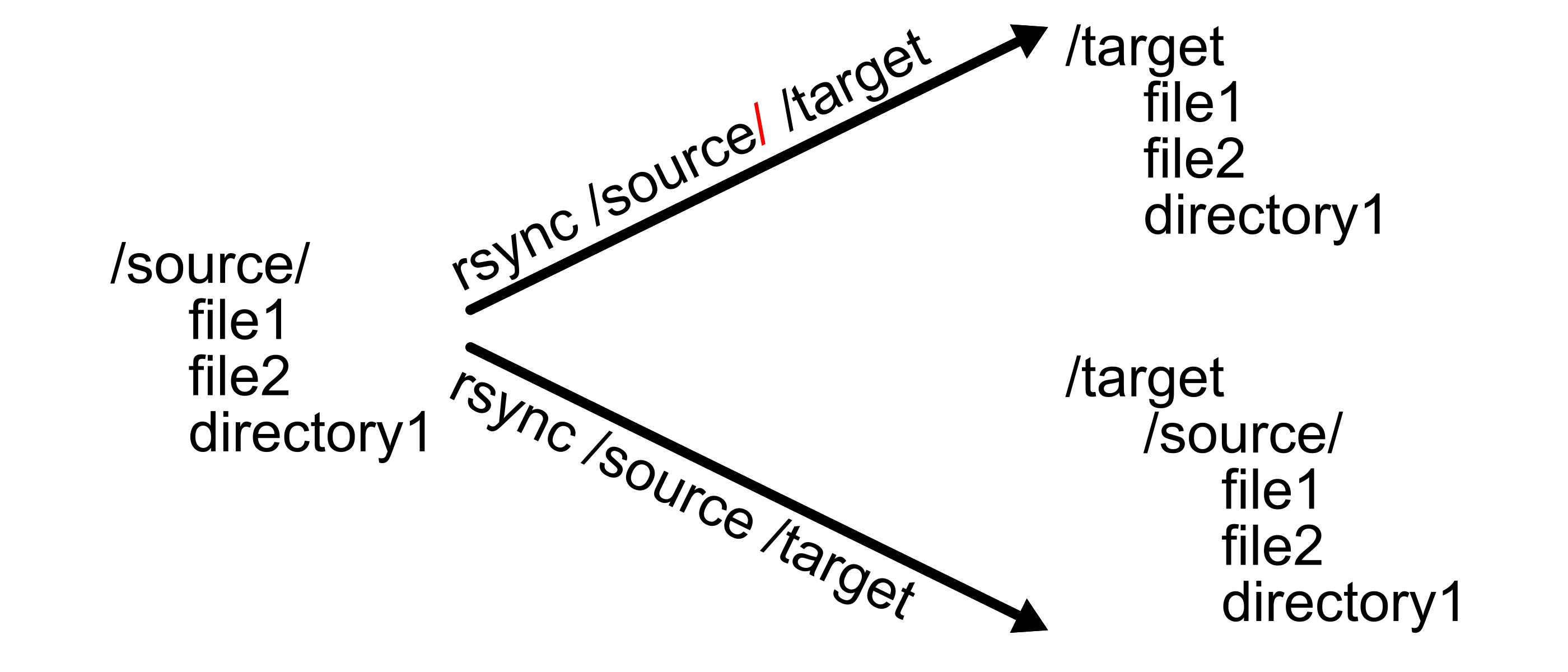
Reasons why you should (not always, but often) prefer rsync over cp:
- Resume Interrupted Transfers If you are copying a large file and your terminal session crashes or the power cuts out, cp will simply fail, and you have to start over. rsync can pick up right where it left off, which is a massive time-saver for large datasets.
- Efficiency (Delta-Transfer Algorithm) rsync is designed to be smart. If you are copying a file that already exists at the destination (e.g., you are updating a backup), rsync only copies the parts of the file that have actually changed (the “delta”) rather than overwriting the entire file. cp, by contrast, always copies the whole file every single time.
- Real-time Progress Monitoring rsync provides excellent visual feedback. By using the -P (or –progress) flag, you get a real-time progress bar showing the percentage complete, transfer speed, and estimated time remaining. cp is famously silent, leaving you guessing whether the process is still running or has hung, requiring you to check at the destination via the size of the arriving file, whether anything is progressing (ls -lh filename, or du -hs filename)
- Seamless Remote Transfers rsync is natively built to work over SSH. You can use it to copy files directly to or from a remote server as easily as copying files on your local machine. cp cannot do this; to use cp for a remote server, you would first need to mount the remote filesystem locally, which is far more complex and prone to errors.
Here is a common use case, the transfer of a directory, including all of its content:
rsync --progress --recursive source targetTo resume a previously interrupted copy:
rsync --progress --recursive --ignore-existing source targetPlease note that
rsync source/ targetand
rsync source targetdo produce different results! The trailing slash at the end of the source directory tells rsync to copy the source directory’s contents into the target directory. Without the trailing slash, the target directory will contain a single directory identical to the source directory. If you want an exact copy, you can use the -a flag (–archive), which includes the -rlptgoD flags:
--recursive (r)
--links (l, copy symlinks as symlinks)
--perms (p, preserve permissions)
--times (t, preserve modification times)
--group (g, preserve group)
--owner (o, preserve owner)
--devices --specials (D, preserve device files and special files, works only for root)
To exclude the directory named ‘directory’ or the file named ‘file’ from being copied, the syntax is as follows:
rsync -a --exclude 'directory' --exclude 'file' source/ targetBe very careful with excluding, since it does not matter where in the hierarchy the directory or the file is located! If you have several files with the same name in different places within the source directory, all of them will be excluded! To exclude a specific file, you can specify its full path starting with “/”, which denotes the root of the source directory (not the root of the whole file system).