Purifying Proteins with Äkta & Unicorn
First published April 19, 2026 • Last modified on July 26, 2026 • 3 min read • 439 words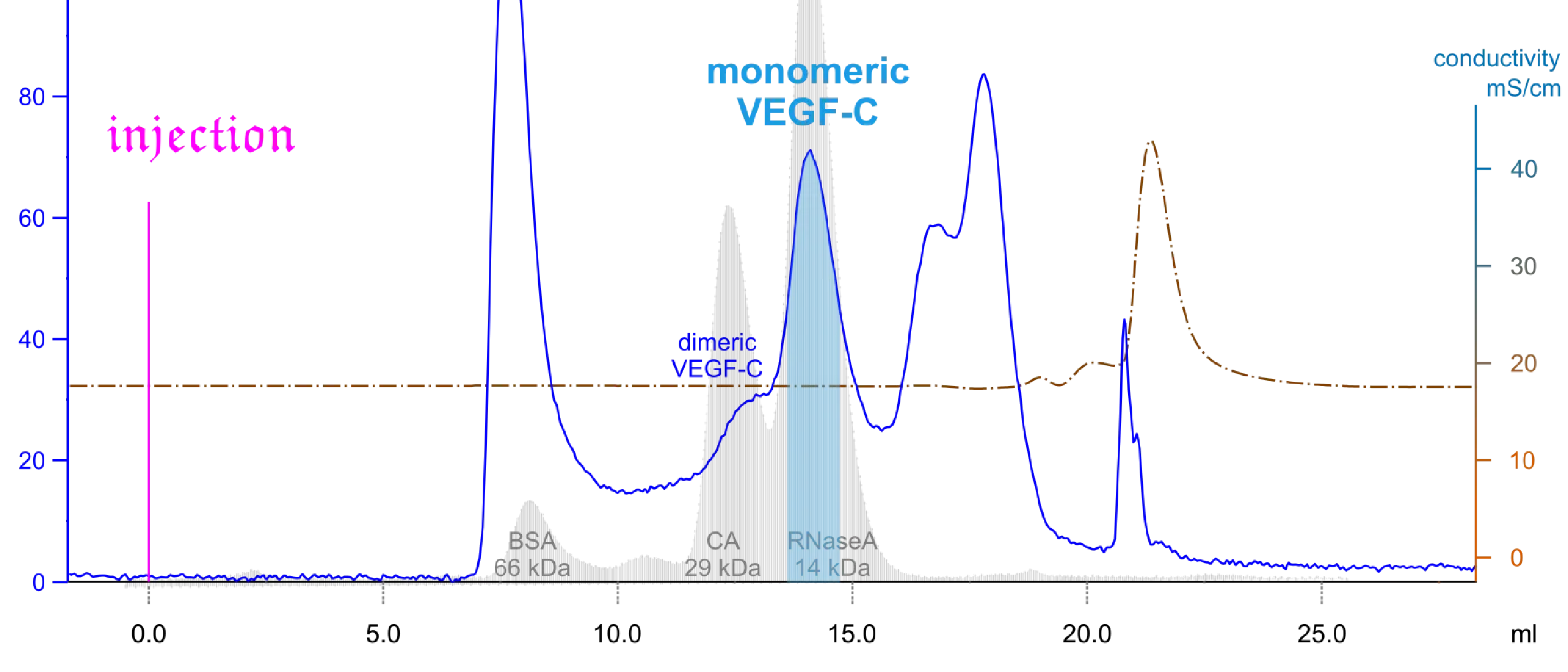
Proteins (and other biomolecules) are mostly purified by chromatographic methods. There are a few vendors that have designed dedicated chromatography systems that are optimized for biomolecules such as proteins, nucleic acids, and viruses. The most well-known systems are BioRad’s NGC and Cytiva’s Äkta lines. Our faculty has recently acquired an Äkta Avant, and we are almost ready with setting it up. It’s already integrated into the reservation system. Only the automated backup system is still missing. I have been using Äkta devices since 1996, when Professor Jorma Keski-Oja bought one of the first Äkta Explorers for the Haartman Institute. The software was and still is Unicorn, but we are at version 7 now, which has a modern look when compared to the Unicorn versions from the last millennium: much less messy and cluttered. However, even after more than 10 years of development, Unicorn 7 is not yet at feature parity with the old versions. Hence, its Evaluation module offers you the option to switch back to Evaluation Classic. E.g., if you want to present personalized and stylish chromatograms in your talks, you still need Evaluation Classic! The new Evaluation module does have quick buttons to import curves into presentation software such as PowerPoint, but it is all pixel-based and therefore not easily editable after export. You want to export your curves into the industry-standard vector graphics file: SVG. You can edit it with any modern vector graphics editor, such as Canva, Adobe Illustrator, or Inkscape. When you right-click inside the chromatogram in Evaluation Classic, you have the option to save the chromatogram as a meta file. However, in the recent Unicorn version, this results in an error on Windows 11. But there is a workaround:
- In the Evaluation module, choose File > Application > Switch to Evaluation Classic
- Right-click somewhere onto the chromatogram > Copy to Clipboard > Copy curve window as enhanced metafile > Ok
- Open a blank PowerPoint slide > Right-click > Paste (not “Paste image”!)
- Click on the graph > Group > Ungroup
- PowerPoint will ask you whether you want to convert the item into a Microsoft Office drawing object > Yes
- Save the PowerPoint file as SVG file
- Open the SVG file in Inkscape (or Adobe Illustrator or any other application that supports SVG files)
- You probably need to do a deep ungroup (i.e., ungroup multiple times) before you can start editing individual objects.
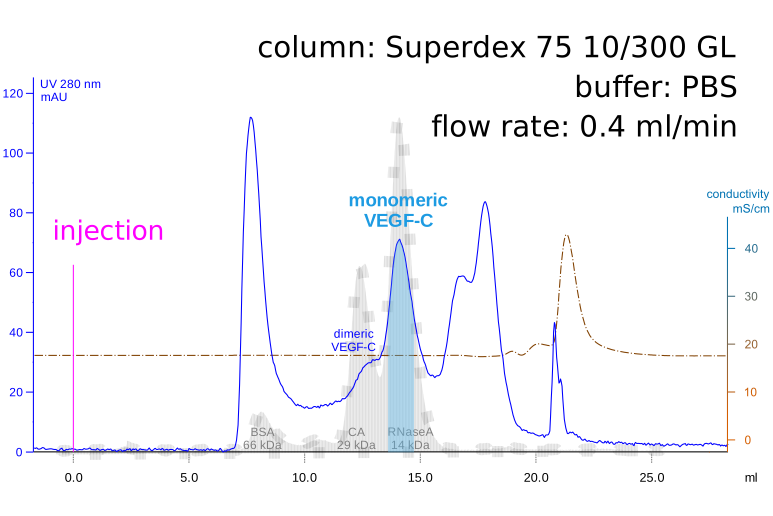
In the shown example, I have modified fonts, the line style, made a gradient, and some fills. Any element is separately editable. The editable SVG file is available below for download.